
MCS has introduced a new capability to have a backup configuration, ensuring a seamless fallback in the event of capacity-related or spot unavailability issues.
This backup configuration would be triggered when the VM fails to power on in the following scenarios:
- When the available cores for a particular Service Offering in a region are lower than what you have requested.
- When there is insufficient capacity for the requested VM size in a zone or region.
- When the requested VM size is not available in the given location and zone of a subscription.
- When using Azure Spot VM provisioning:
- When Spot VMs are currently unavailable for the current Service Offering.
- When the Spot price rises beyond what is specified as the max price in a billing profile.
In this blog post, I will show you how to set up a backup configuration and outline the prerequisites for choosing the appropriate backup VM size.
How to setup backup configuration
To backup a configuration, we introduce a new custom property, BackupVmConfiguration, that can be added to the Provisioning Scheme. This property can also be applied to an existing catalog through Set-ProvScheme. It is essentially a curated list of ServiceOfferings and Types, serving as a fail-safe mechanism.
Capacity Failure example
In the event of provisioning failures due to capacity issues, the backup configuration can be setup as follows:
New-ProvScheme -ProvisioningSchemeName “demo” -MasterImageVM “XDHyp:\HostingUnits\azure-zones\image.folder\TestResourceGroup.resourcegroup\TestSnapshot.snapshot” -MachineProfile “XDHyp:\HostingUnits\azure-zones\machineprofile.folder\TestResourceGroup.resourcegroup\TestMachineProfileVM.vm” -CustomProperties
“<CustomProperties xmlns=`”https://schemas.citrix.com/2014/xd/machinecreation`” xmlns:xsi=`”https://www.w3.org/2001/XMLSchema-instance`”>
<Property xsi:type=`”StringProperty`” Name=`”BackupVmConfiguration`” Value=`”[{‘ServiceOffering’: ‘Standard_D2as_v4’, ‘Type’: ‘Regular’}, {‘ServiceOffering’: ‘Standard_D2s_v3’, ‘Type’: ‘Regular’}]`”/>
</CustomProperties>”
Spot Eviction example
Similarly, in the event of Spot VM provisioning failures, the backup configuration can be setup as follows:
New-ProvScheme -ProvisioningSchemeName “demo” -MasterImageVM “XDHyp:\HostingUnits\azure-zones\image.folder\TestResourceGroup.resourcegroup\TestSnapshot.snapshot” -MachineProfile “XDHyp:\HostingUnits\azure-zones\machineprofile.folder\TestResourceGroup.resourcegroup\TestMachineProfileVM.vm” -CustomProperties
“<CustomProperties xmlns=`”https://schemas.citrix.com/2014/xd/machinecreation`” xmlns:xsi=`”https://www.w3.org/2001/XMLSchema-instance`”>
<Property xsi:type=`”StringProperty`” Name=`”BackupVmConfiguration`” Value=`”[{‘ServiceOffering’: ‘Standard_D2as_v4’, ‘Type’: ‘Spot’}, {‘ServiceOffering’: ‘Standard_D2as_v4’, ‘Type’: ‘Regular’}, {‘ServiceOffering’: ‘Standard_D2s_v3’, ‘Type’: ‘Spot’}]`”/>
</CustomProperties>”
Please refer to the Citrix GitHub page for sample PowerShell scripts on applying the BackupVmConfiguration custom property to new and existing provisioning schemes.
Prerequisites to setting up BackupVmConfiguration custom property
- It is only supported when the machine profile is in use.
- Type is optional and can have one of two values: Spot and Regular. When not specified will default to Regular
- A combination of ServiceOffering and Type should be unique in the list.
- Regional Quota should have enough cores for ServiceOffering
- NIC count should be no greater than MaxNICs allowed on a ServiceOffering
- ServiceOffering should be compatible with currently used custom properties and other catalog features such as:
-
- Host Groups: If dedicated hosts are being used, then the hosts in the host group must support the ServiceOffering
- Ephemeral OS Disk: If Ephemeral disk is enabled in custom properties, the ServiceOffering must support Ephemeral disks
- Premium Storage: If Premium storage is enabled in custom properties, the ServiceOffering must support Premium storage
- Accelerated Networking: If Accelerated Networking is enabled in MachineProfile, the ServiceOffering must support Accelerated Networking
- DiskEncryptionAtHost: If Encryption at Host is enabled in MachineProfile, the ServiceOffering must support Encryption at Host
- Temporary Storage: If the primary VM size specified in the ServiceOffering parameter supports Temporary disk, then the Service Offering input in the Backup list must also support Temporary disks
- HyperVGeneration: The selected ServiceOffering must be compatible with the VM generation (Generation 1 or 2) on the resource specified in the MasterImageVM parameter
- Hibernation: If Hibernation is enabled in MachineProfile, the ServiceOffering must support Hibernation
- TrustedLaunch: If TrustedLaunch is enabled in MachineProfile, the ServiceOffering must support TrustedLaunch
- Confidential VMs: If Confidential VM is enabled in MachineProfile, the ServiceOffering must support Confidential VM
-
- ServiceOffering should be Spot compatible when Type is Spot. Example: if it’s B-series, Type cannot be Spot. Refer: https://learn.microsoft.com/en-us/azure/virtual-machines/spot-vms#limitations
BackupVmConfiguration is designed to enhance reliability and ensure continuity in your operations. By implementing this, you can mitigate the risks associated with capacity-related issues and Spot VM evictions.
Guideline for choosing Backup SKU(s)
When selecting a SKU for the backup configuration, the goal is to ensure a balance between availability, performance, and cost, while also ensuring that the alternative SKU closely matches or complements the primary VM SKU.
Here’s a few strategies that can be used in deciding what SKUs would be most appropriate to use as backup in the event of primary SKU being unavailable.
1. Choosing Different Architecture
When you have a primary VM running on an Intel-based SKU such as Dsv5-series, consider using an AMD-based SKU like the Dasv5-series or Easv5-series as backup. By selecting an AMD-based VM series, you leverage different underlying hardware, which can be advantageous if there is a regional stock constraint affecting Intel-based VMs.
Example Configuration:
- Primary VM SKU: D4s_v5 (Intel-based)
- Backup VM SKU: D4as_v5 (AMD-based)
2. Choosing Older Generation
When you have a primary VM running on the Ds-v5 series which is a newer generation, consider using a SKU from an older generation like v4 series as backup. Older generation hardware tends to have broader availability due to its longer time in service, and the newer generation hardware is generally backward-compatible.
Example Configuration:
- Primary VM SKU: D4s_v5 (Newer Generation)
- Backup VM SKU: D4s_v4 (Older generation)
3. Combination of Different Architecture and Generation
For best resilience, you may combine both different architecture and an older generation in the backup strategy. This combination ensures that in case one set of hardware is not available, an alternative architecture from a different generation might still be accessible.
Example Configuration:
- Primary VM SKU: D4as_v5 (AMD-based, Newer Generation)
- Backup VM SKU: D4s_v4 (Intel-based, Older generation)
4. Burstable Series (B-series)
When your primary VM is running on a Fsv2-series SKU and is heavily used for compute-intensive workloads and the backup is expected to run only for short periods during failover, a B-series (burstable) VM might be a good choice. These VMs accumulate credits when not in use and when they need to perform more intensive tasks, they use those credits to temporarily exceed the baseline CPU performance, making them cost-effective for occasional usage.
Please note that, B-series is not compatible with Spot VMs. So, when the backup configuration type is Spot, B-series SKU won’t be allowed.
Example Configuration:
- Primary VM SKU: F8s_v2 (Compute Optimized, Expensive)
- Backup VM SKU: B8ms (Burstable, Cost-effective)
Please refer to this table for additional information on SKUs used in above examples:
| SKU | vCPU | Memory (GiB) | Temp Disk (GiB) | Processor | Supported Features |
|---|---|---|---|---|---|
| D4s_v5 | 4 | 16 | 0 | Intel | Premium Disk, Accelerated Networking, Nested Virtualization |
| D4as_v5 | 4 | 16 | 0 | AMD | Premium Disk, Accelerated Networking, Nested Virtualization |
| D4s_v4 | 4 | 16 | 0 | Intel | Premium Disk, Accelerated Networking, Nested Virtualization |
| F8s_v2 | 8 | 16 | 64 | Intel | Premium Disk, Accelerated Networking, Ephemeral OS Disk, Nested Virtualization |
| B8ms | 8 | 32 | 64 | Intel | Premium Disk, Accelerated Networking, Ephemeral OS Disk |
Steps involved when applying a backup configuration
Initialization:
- When a power-on command is initiated, VM provisioning begins with the primary configuration defined in the machine profile.
Error Detection:
- Azure-specific capacity errors are detected. These errors include exceeding core quotas or the per-hour price of a Spot VM surpassing the set maximum.
Power On with Backup Configurations:
- In response to detected errors, during power on, the system automatically retries the operation using each backup configuration.
- The retry sequence starts with the first item in the BackupVmConfiguration list.
- Retries continue until successful VM provisioning, adopting backup configurations if needed.
Session Usage:
- The provisioned VM utilizes the backup configuration for the remainder of the session until it’s shut down.
Next Power-On:
- Subsequent power-on commands for the same VM trigger attempts to provision with the primary configuration.
Failure Handling:
- If all backup configurations fail, a terminating error is returned.
This approach ensures a resilient provisioning process, seamlessly transitioning to backup configurations when encountering specific capacity-related issues on Azure.
Learn more about Azure Spot VM
Spot Virtual Machines enable the provisioning of unused Azure compute capacity at deep discounts, offering up to 90 percent savings compared to pay-as-you-go prices. These Spot VM instances are ideal for workloads that can tolerate interruptions, providing scalability and cost reductions. At any point in time when Azure needs the capacity back, the Azure infrastructure will evict the Spot VM with 30-seconds notice.
There are two types of evictions for Azure Spot VMs:
- Capacity only: This eviction type triggers when excess compute capacity disappears. By default, the price is capped at the pay-as-you-go rate. Use this eviction type if you are willing to pay up to the standard pay-as-you-go price for a VM.
- Price or capacity: This eviction type has two triggers. Azure evicts a spot VM when excess compute capacity disappears, or the cost of the VM exceeds the max price you have set. This eviction type allows you to set a maximum price well below the pay-as-you-go price. Use this eviction type to set your own price cap.
Depending on the EvictionPolicy set by the customer, during eviction, the VM can be handled in one of two ways:
- Deallocated – The VM is deallocated and remains visible in Azure. All attached disks are retained.
- Deleted – The VM is deleted and is no longer visible in Azure. The disks are either kept or deleted based on the deleteOption.
Microsoft Reference
https://learn.microsoft.com/en-us/azure/virtual-machines/spot-vms
How to provision a Spot VM
Spot VMs can only be provisioned with a machine profile. Below are the steps for provisioning a Spot VM, either through a Template Spec or VM as a machine profile.
When using a Template Spec, the highlighted properties should be added under Resources > the VirtualMachines Resource > Properties:
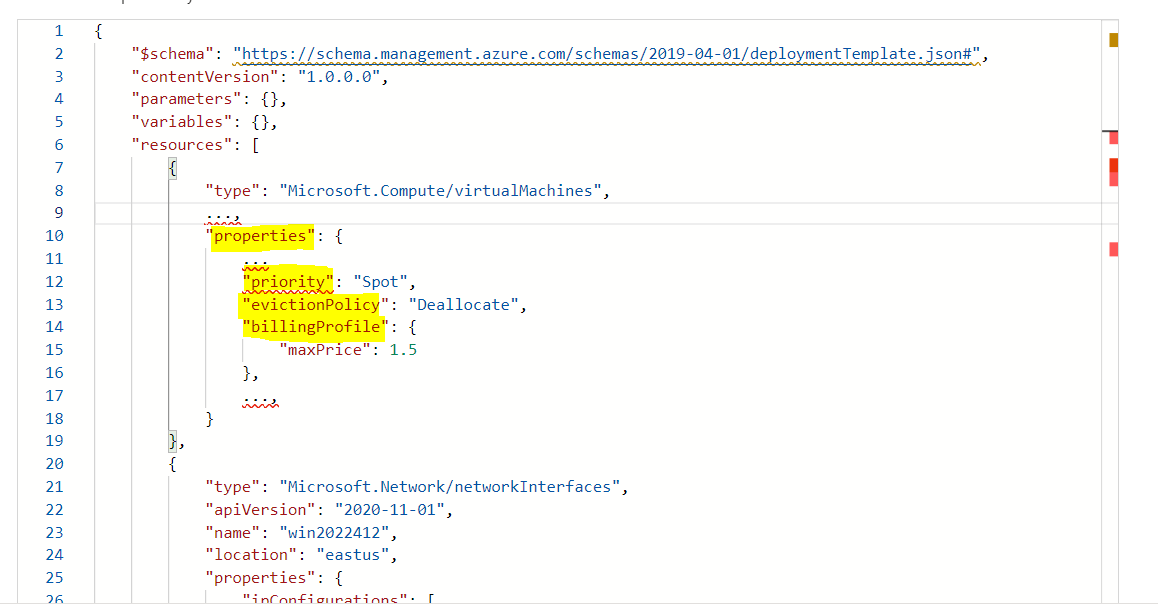
- Priority: This should be set to “Spot”. If not specified, it will default to “Regular”.
- Eviction Policy: This can be set to either “Delete” or “Deallocate”. However, it gets overwritten based on the type of catalog while provisioning:
- Deallocate for Persistent VM
- Delete for Non-Persistent VM
- BillingProfile: This is optional. If not provided in the template, the Spot VM will have a capacity-only eviction setting.
- MaxPrice: Is the maximum you are willing to pay per hour. If using Capacity Only, this will be -1
More information on the template setup can be found here: https://learn.microsoft.com/en-us/azure/virtual-machines/linux/spot-template#use-a-template
When provisioning a Spot VM as a machine profile, select Eviction type and Eviction policy on the Create Virtual Machine page as shown below:
Assign user groups different settings
Special Handling for Secondary Spot Configuration
When Using a Machine Profile with Spot Enabled:
- A machine profile may have Spot enabled with specific BillingProfile and MaxPrice settings.
Backup Configuration of Type: Spot:
- If you try to provision with a backup configuration set as Type: Spot, the specific Spot settings from the machine profile might not be compatible with the backup ServiceOffering.
- In those cases where the Spot settings are not selected. The VM is instead provisioned with a Capacity Only eviction policy and a MaxPrice of -1.
Backup Configuration of Type: Regular:
- When using a backup configuration of Type: Regular, the Spot settings in the machine profile are not applicable.
- In this scenario, the VM is provisioned using just the backup ServiceOffering, which simplifies the process for non-Spot configurations.
Upon VM Restart:
- If a backup configuration has been successfully applied and the VM is later restarted, the system reverts to the original Spot settings defined in the machine profile. This reset to the primary configuration ensures consistency with the initial setup.
In summary, this special handling ensures that the provisioning process remains robust and adaptable, whether dealing with Spot or Regular configurations. The system dynamically aligns with the most suitable settings based on the type of backup configuration applied, reverting to the original settings upon a VM restart for consistency.
Learn More
Incorporating backup configurations into your machine catalogs is a strategy that significantly enhances user experience. We highly recommend delving into the potential benefits this configuration can bring to your workloads. For detailed guidance on creating catalogs, refer to our comprehensive product documentation.