


Simplify App & Image Management with Citrix Profile Management’s New App Access Control
As IT administrators, managing different applications and images for multiple departments can be time-consuming and challenging. The task becomes even more complicated when you have to manage licenses for restricted software or applications. With Citrix Profile Management’s App Access Control, you can now control user access to applications, files, folders, and registries, making application and image management easier than ever before. In this post, we’ll explore the benefits of App Access Control and explain how to enable this feature.
App Access Control Benefits
The App Access Control feature offers many benefits, including:
- Simplified Application and Image Management: IT administrators can install all their applications on a single “golden” image and use the feature to control user access to different applications, files, folders, and registries. For example, let’s say you need to provide four applications – SAP, Salesforce, Visual Studio, and Office 365 – to users from three different departments: HR, Sales, and R&D. With App Access Control, you can specify that only users from the HR department can access SAP, only users from the Sales department can access Salesforce, only users from the R&D department can access Visual Studio, and all users can access Office 365.
- License Compliance: Administrators can add licensed software to the image and configure App Access Control to show users only the software they are entitled to. This ensures license compliance and avoids any legal or financial consequences that might arise from unauthorized software usage.
How to Enable App Access Control
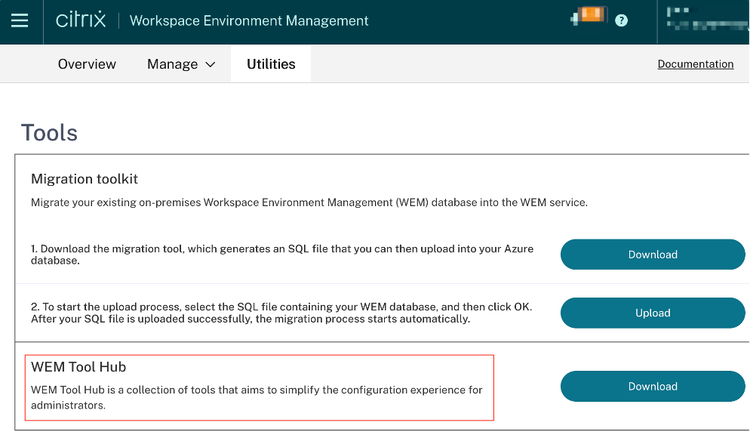
1. Download WEM Tool Hub from Citrix Cloud – WEM Service – Utilities. The WEM Tool Hub provides a user-friendly interface that enables administrators to create customized rules, allowing them to control user access to applications, files, folders, and registries with ease.
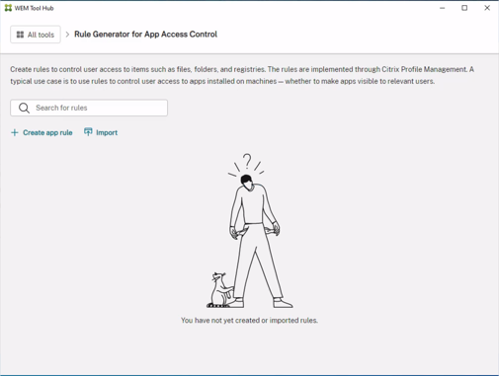
Generate rules by following the Rule Generator for App Access Control wizard. Click Rule Generator for App Access Control, then Click Create App Rule in the action bar.
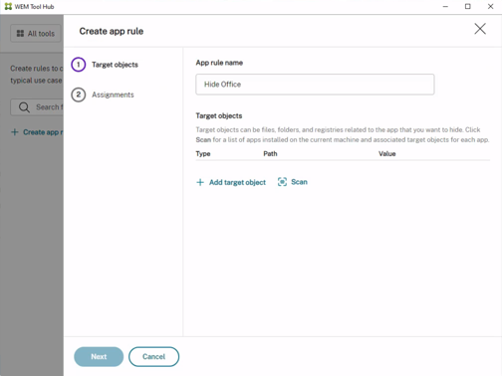
On the Target Objects page, configure app rule name and target objects. Click Scan for a list of apps installed on the current machine and objects associated with each app.
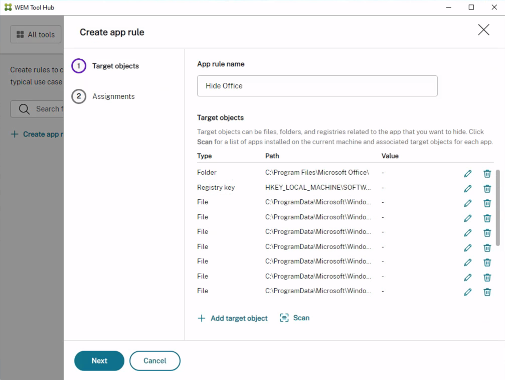
When scanning Microsoft Office, all associated objects are displayed, including files, folders, registries, and links. This comprehensive list provides a detailed overview of Office-related resources, enabling administrators to manage them more effectively.
On the Assignments page, add users, computers (organizational units), and processes you want to assign the target objects to. After you finish, click Done.
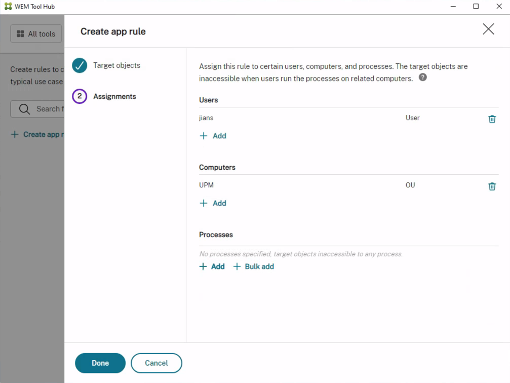
To generate raw data for rules, complete the following steps:
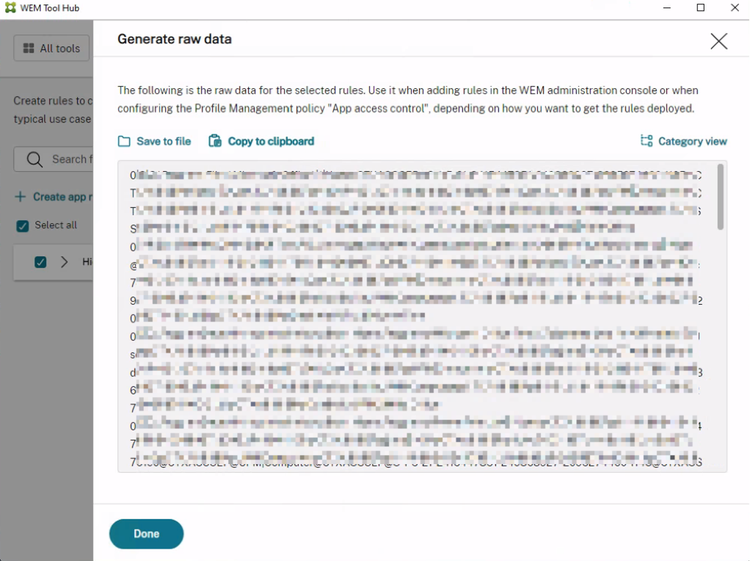
1.) Select desired rules or click Select All to select all rules.
2.) Click Generate Raw Data in the action bar. The raw data is then generated for the selected rules.
3.) In the Generate Raw Data window, save the raw data to a file for later restoration or copy the raw data to your clipboard.
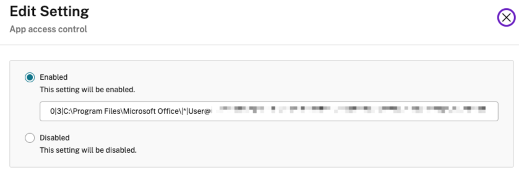
3. To enable the App Access Control policy, simply paste the generated rule into the Profile Management App access control policy in DaaS Studio. This policy can be enabled through several methods, including DaaS Studio, the WEM web console, or the UPM GPO.
Now, once a user logs on to a DaaS desktop that has UPM enabled and the App Access Control policy configured, applications will automatically be hidden according to the rules that have been set up.
Give it a try!
Citrix Profile Management’s App Access Control feature is a powerful tool for IT administrators. It simplifies application and image management, reduces the number of images, and assists with license compliance. By following the steps above, you can enable this feature and take advantage of its benefits. Give it a try and let us know what you think in the comments below!
For more information, visit our product documentation page.