

Citrix Virtual Apps and Desktops keyboard and IME configurations
Citrix Virtual Apps and Desktops offers rich configurations around keyboards and input method editors to support user and IT admin requirements, including languages and platforms. But configuring keyboards and IMEs correctly can be difficult because of factors like the variety of Citrix Workspace app clients, OS platforms, and more.
Keyboard Synchronization Mode
Citrix Virtual Apps and Desktops supports both client keyboards and VDA-side keyboards. If the client keyboard layout is different with VDAs, one common issue is which side of the keyboard layout is applied. The basic rules are:
- If the client is Citrix Workspace app for Windows, or set as Citrix Workspace app for Linux in Mode 1, the VDA-side keyboard will be applied, which means key input is determined by the VDA-side keyboard layout.
- If the client is a non-Windows Citrix Workspace app (Mac, Linux, iOS, or Android), the client keyboard will be applied, which means key input is determined by client side keyboard layout.
- If rules 1 and 2 don’t work, there might be incorrect configurations or Citrix Virtual Apps and Desktops doesn’t support that type of scenario. If this is the case, contact Citrix Customer Service.
Another common issue is which keyboard layout is set on the VDA side when users log in or reconnect to a session. Does it sync the client keyboard layout to VDA side? If it doesn’t, which keyboard layout is used? It depends on the keyboard synchronization mode settings. Citrix Virtual Apps and Desktops supports four keyboard synchronization modes:
- Mode 1: Use the VDA side default keyboard when logging in or reconnecting to the VDA. This is the default setting when the client is Citrix Workspace app for Android and Citrix Workspace app for iOS. You can configure this setting through the client configure file or icafile in StoreFront. Any keyboard layout change in client side will not be synchronized to the VDA side in session.
- Mode 2: Use a specific keyboard when logging in or reconnecting to the VDA. A specific keyboard layout can be configured through the client configuration file or icafile in StoreFront when logging in or reconnecting to the VDA. Any keyboard layout change on the client side will not be synchronized to the VDA side in session.
- Mode 3: Only synchronize the VDA-side keyboard with client default keyboard when logging in or reconnecting to the VDA. This is the default setting when the client is Citrix Workspace app for Windows, Mac, or Linux. Any keyboard layout change on the client side will not be synchronized to the VDA side in session.
- Mode 4: Synchronize the VDA-side keyboard with the client keyboard dynamically in the VDA session. When the user changes the client keyboard, the VDA keyboard will be synchronized automatically in session. Both the client and VDA have settings to enable this mode.
All four synchronization modes are exclusive, and individual clients can only work in one of the modes. If a user has more than one client, I don’t recommend setting different synchronization modes for every client, even if you can. That causes confusion about which keyboard will be applied in session when logging in and reconnecting through a different client.
Using Mode 1 and Mode 2 may cause inconsistency between the client keyboard and the VDA-side keyboard. For example, the client-side keyboard might display the German keyboard icon, but the VDA side might display the English keyboard icon. Mode 1 and Mode 2 are normally used in deployments that use only one kind of keyboard layout and where the client side does not need to change the keyboard layout. For Windows OS, the VDA side default keyboard depends on the Windows OS language, the current user profile setting, and the Windows OS configurations. The keyboard layout in VDA is unknown in Mode 1, and using this mode is not recommended.
Citrix Workspace app Default Synchronization Mode Mode 3 Mode 3 Mode 3 Mode 1 Mode 3 Mode 3
Table 1.1 Default Synchronization Mode for Citrix Workspace app
The sync mode supportability in different platform of Citrix Workspace app is below:
Citrix Workspace app Mode 1 Mode 2 Mode 3 Mode 4
Table 1.2 Sync Mode Supportability in Different Platform of Citrix Workspace app
Mode 1: Configure “Use VDA side default keyboard when logging in or reconnecting to the VDA” Mode
This mode will not synchronize client keyboard layout to VDA-side when logging in or reconnecting to the VDA. There are two levels for configuring this mode. One is through modifying the local configure file installed with the Citrix Workspace app for each user. The other is through modifying default.ica in the StoreFront server. The StoreFront configuration has higher priority than the client local file configuration.
Configure in configuration file
Citrix Workspace app Configuration
Table 1.1.1.1 Use VDA side default keyboard Mode in Local File Configuration
Configure in UI
Citrix Workspace app for Windows
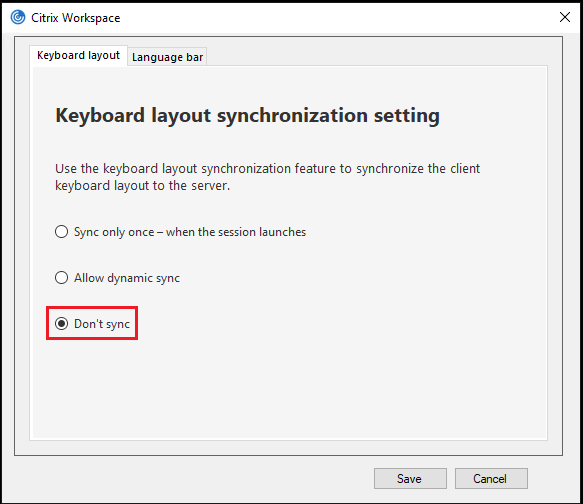
Open Advanced Preferences → Keyboard and Language bar → Keyboard layout page, and select the Don’t sync option after version 2103 to replace setting in configure file.
Configure in StoreFront
Path: C:\inetpub\wwwroot\Citrix\%StoreName%\App_Data\default.ica
Change setting in [WFClient]: KeyboardLayout=(Server Default)
Configure in group policy
Only Citrix Workspace app for Windows support group policy. The high priority is group policy > StoreFront configuration > UI configuration
Citrix Workspace app for Windows
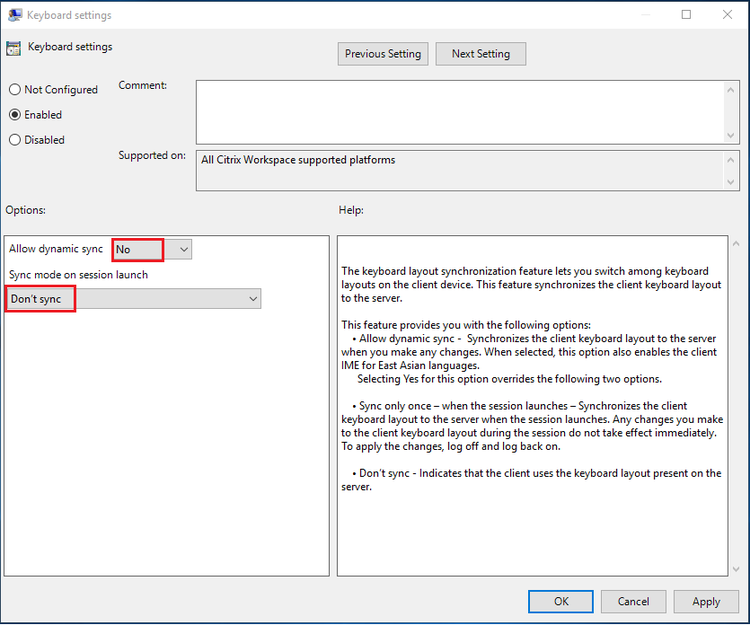
Refer to the keyboard layout and language bar in Citrix Workspace app for Windows product document. It is supported after version 2103. Change settings as below:
Mode 2: Configure “Use specific keyboard when logging in or reconnecting to the VDA” Mode
This mode also supports the “Configure in configuration file” and the “Configure in StoreFront”. It uses the same configuration item in the “Configure in configuration file.” Users can set the specific keyboard layout listed in Appendix A. For example, set the specific keyboard to “French” in the configure file when logging in or reconnecting to the VDA and change the setting in [WFClient]: KeyboardLayout=French.
Mode 3: Configure “Only synchronize VDA side keyboard with client default keyboard when logging in or reconnecting to the VDA” Mode
This mode will synchronize the client keyboard layout to the VDA side once when logging in or reconnecting to the VDA. This mode also support the file configuration and StoreFront configuration.
This mode isn’t supported by all Citrix Workspace app types, as shown in the following table:
Citrix Workspace app Support
Table 1.3.1 Citrix Workspace app Capability for Only synchronize VDA side keyboard with client default keyboard when logging in or reconnecting to the VDA Mode
Configure in configuration file
It uses the same configuration item in the file configuration. You’ll change the setting in [WFClient]: KeyboardLayout=(User Profile).
Configure in UI
Citrix Workspace app for Windows
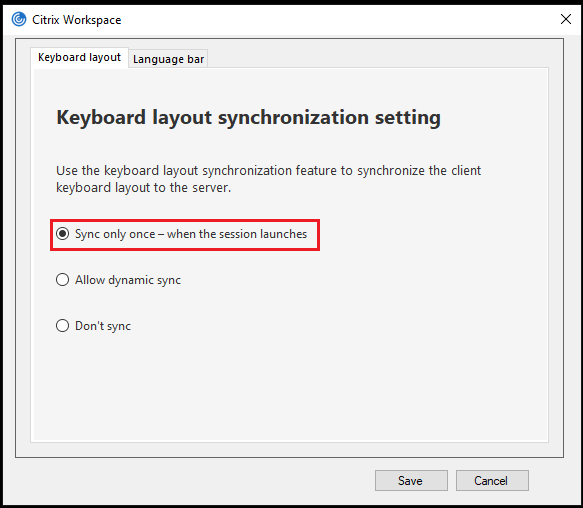
Open Advanced Preferences → Keyboard and Language bar → Keyboard layout page. Sync only once, when the session launches option after version 2103 to replace setting in configure file.
Configure in StoreFront
It uses the same configuration item in the StoreFront configuration. You’ll change the setting in [WFClient]: KeyboardLayout=(User Profile).
Configure in group policy
Only Citrix Workspace app for Windows support group policy. The high priority is group policy > StoreFront configuration > UI configuration
Citrix Workspace app for Windows
Refer to Keyboard layout and language bar in Citrix Workspace app for Windows product documentation. It is supported after version 2103. Change settings as below:
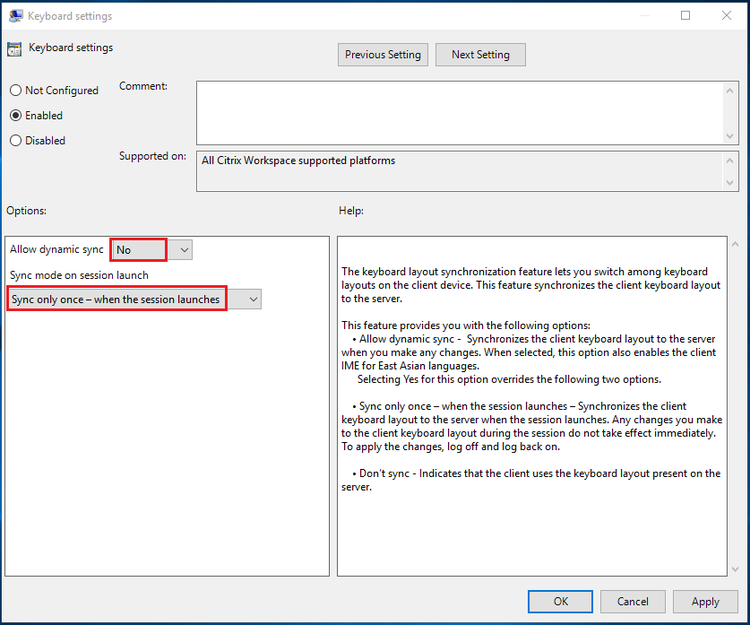
Mode 4: Configure “Synchronize VDA side keyboard with client keyboard dynamically in the VDA session” Mode
This mode will synchronize the client keyboard to the VDA side in the session every time the client keyboard is changed. It will always maintain keyboard consistency between the client and the VDA side. This mode does not support synchronizing of the VDA side keyboard to the client side if users change the keyboard in the VDA side. For CJK (Chinese, Japanese, Korean) users, this mode will enable them to use the client IME instead of the VDA-side IME. This mode is also called the Client Keyboard Synchronization and Generic Client IME feature, and you must configure both the client and VDA sides to enable this feature.
VDA Configurations
Configure in registry
It is obsolete. Use group policy instead of registry configuration.
VDA Configuration
Table 1.4.1.1.1 VDA Configuration for Synchronize VDA side keyboard with client keyboard dynamically in VDA session Mode
Configure in Citrix group policy
After Windows VDA version 1912 CU2 and 2006, Linux VDA 2012, VDA configuration support Citrix Group Policy. Refer to CTX312404 for more information. Enable VDA dynamic client keyboard layout sync and IME improvement is below:
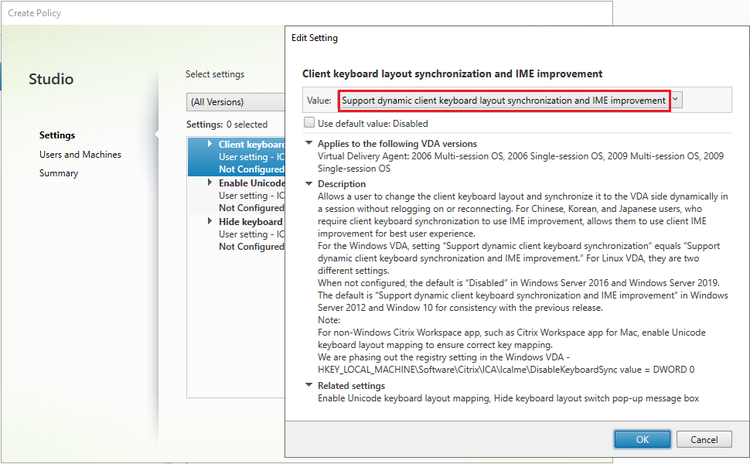
Citrix Workspace app configurations
Configure in configuration file
Citrix Workspace app Configuration Generic client Input Method Editors (IME) Keyboard layout synchronization
Table 1.4.2.1.1 CWA Configure for Synchronize VDA side keyboard with client keyboard dynamically in VDA session Mode
Configure in UI
Citrix Workspace app for Windows
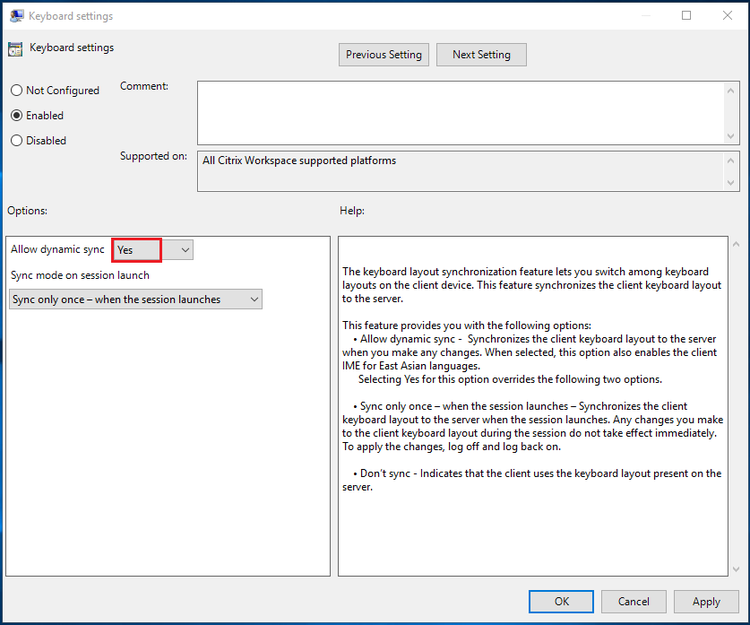
Open Advanced Preferences → Keyboard and Language bar → Keyboard layout page. Allow dynamic sync option after version 2103 to replace setting in configuration file.
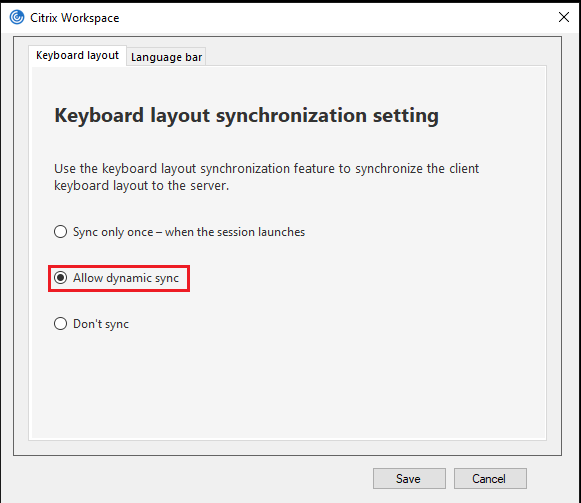
Citrix Workspace app for MAC
Open Citrix Workspace app Preferences → Keyboard and select Use local keyboard layout, rather than the remote server keyboard layout. Refer to Keyboard layout synchronization for more details.
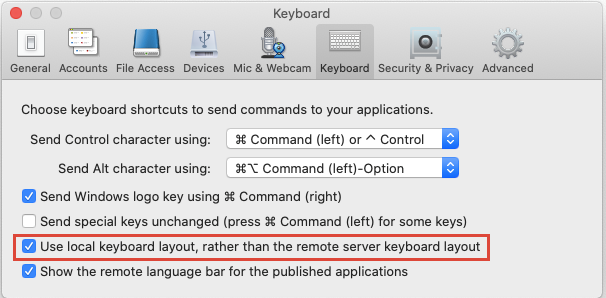
Citrix Workspace app for Android
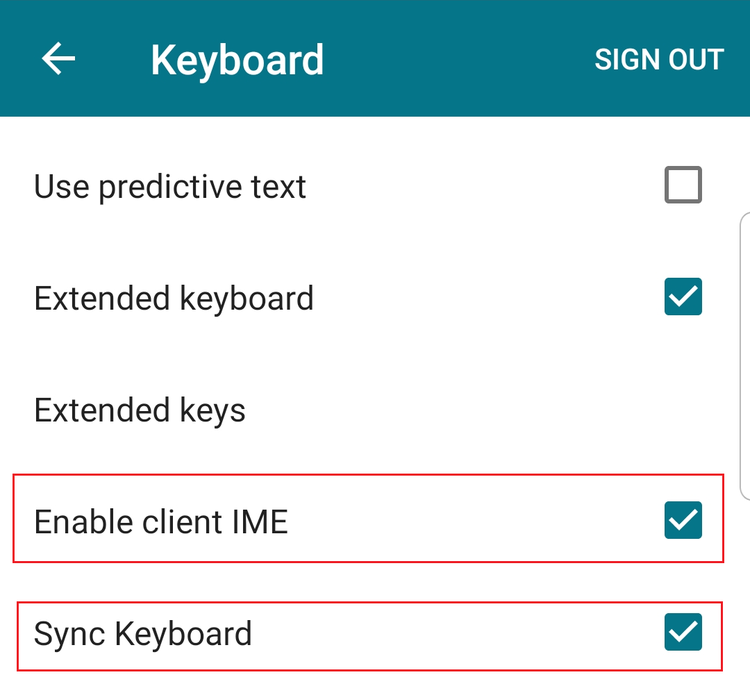
Select Settings → Keyboard → Enable client IME and Sync Keyboard. Find more details on Keyboard layout synchronization.
Citrix Workspace app for iOS
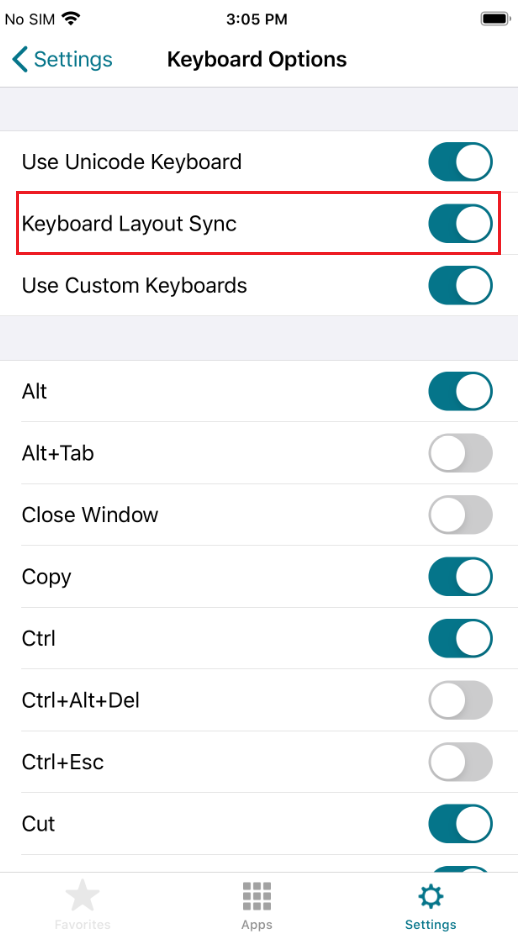
Select Settings -> Keyboard Options -> Keyboard Layout Sync. Find more details on Keyboard layout synchronization.
Configure in StoreFront
Only Citrix Workspace app for Windows support StoreFront configuration.
Citrix Workspace app Supported
Path: C:\inetpub\wwwroot\Citrix\%StoreName%\App_Data\default.ica
Change setting in [WFClient]: LocalIME=1
Configure in group policy
Only Citrix Workspace app for Windows support group policy. The high priority is group policy > StoreFront configuration > UI configuration
Citrix Workspace app for Windows
Refer to Keyboard layout and language bar in Citrix Workspace app for Windows product document. It is supported after version 2103. Change settings as below:
Non-Windows Citrix Workspace app support
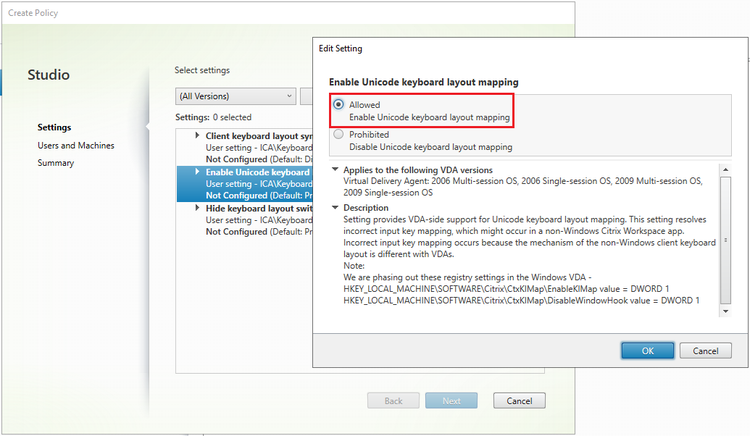
Enable Unicode Keyboard Layout Mapping for Windows VDA
The difference in keyboard layout among operating systems can cause key mapping issues. For example, the Mac France keyboard layout is different from Windows. Citrix Virtual Apps and Desktops uses “Unicode Keyboard Layout Mapping” technology to make rule 2 from earlier in this post happen. Windows VDAs need to enable “Unicode Keyboard Layout Mapping” feature if users have key input issue when using a non-Windows version of Citrix Workspace app.
Configure in registry
Registry configuration is obsolete, but still support. Recommend to use group policy instead.
Add the following registries in Windows VDA to enable this feature:
HKEY_LOCAL_MACHINE\SOFTWARE\Citrix\CtxKlMap\EnableKlMap value = DWORD 1
HKEY_LOCAL_MACHINE\SOFTWARE\Citrix\CtxKlMap\DisableWindowHook value = DWORD 1
Please note, non-Windows versions of Citrix Workspace app will always follow rule 2 if the feature is enabled, even if the keyboard language is different between the client and the VDA. For example, Citrix Workspace app for Mac uses a U.S. English keyboard, but Windows VDA use a France keyboard layout. The key mapping will use the U.S. English keyboard. Mode 4 Synchronize VDA side keyboard with client keyboard dynamically in VDA session will always try to keep the keyboard layout as similar as possible between Citrix Workspace app and the VDA to reduce the key input issue.
Configure in Citrix group policy
After Windows VDA version 1912 CU2 and 2006, Linux VDA 2012, VDA configuration support Citrix Group Policy. Refer to CTX312404 for detail. Enable VDA dynamic client keyboard layout sync and IME improvement is below:
Recommend configuration
Citrix Workspace app Configuration
Generic Client IME for Chinese, Japanese, and Korean (CJK) Users
The Generic Client IME feature provides a seamless input experience for CJK users if they want to use the client IME instead of the VDA side for a better user experience in the scenarios:
- Client use touch keyboard for example Microsoft Surface device.
- Use installed 3rd party IME in client side for published apps and desktops.
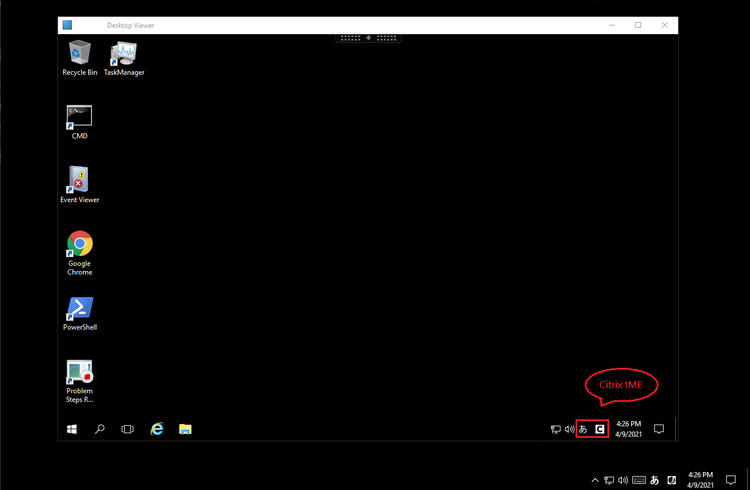
The Generic Client IME feature is enabled with keyboard synchronization mode 4. Citrix IME for CJK languages will be applied automatically in the VDA side when the user selects an IME in the client side.
Touch Keyboard in Windows 10
Windows 10 has touch keyboard to support tablet mode. Users can switch the keyboard layout from a touch keyboard using keyboard synchronization mode 4. Another setting is enables the keyboard to automatically pop up while opening the app with CWAs. Learn more about this configuration.
Other Related Configurations
Show/Hide Remote Language Bar
This feature only applies to Citrix Virtual Apps. For Windows VDA, the remote language bar will be displayed as default if the remote VDA has more than one keyboard layout. The default setting is showing the remote language bar as below:
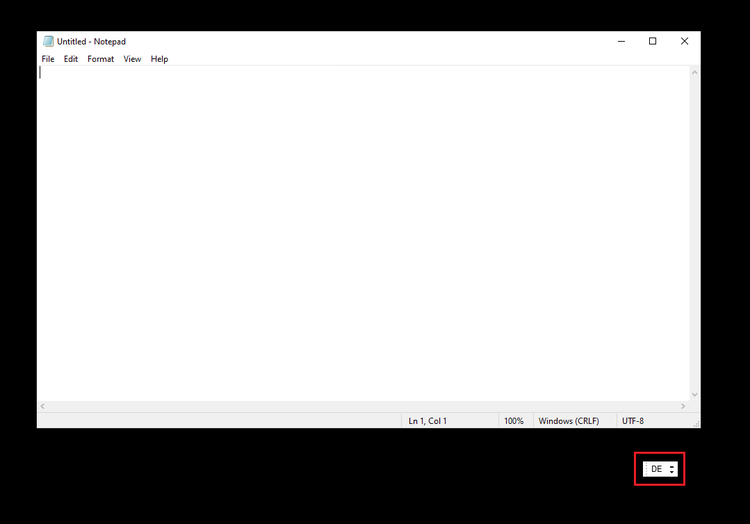
You can hide the remote language bar with the following configurations:
Citrix Workspace app Configuration Language Bar Language Bar
Configure in UI
Citrix Workspace app for Windows
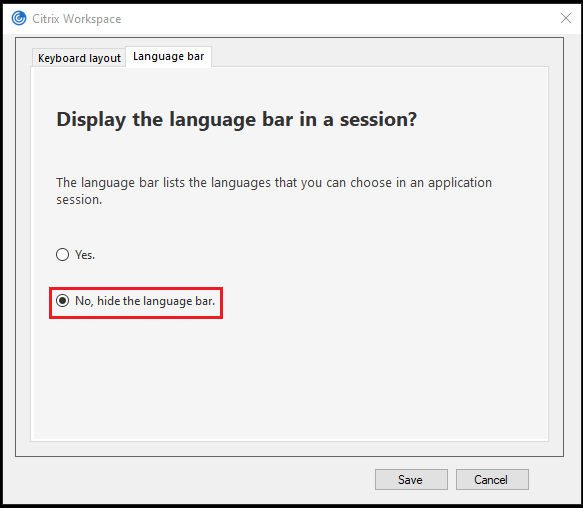
Open Advanced Preferences → Keyboard and Language bar → Language bar page, select No, hide the language bar. Default option is Yes
Citrix Workspace app for MAC
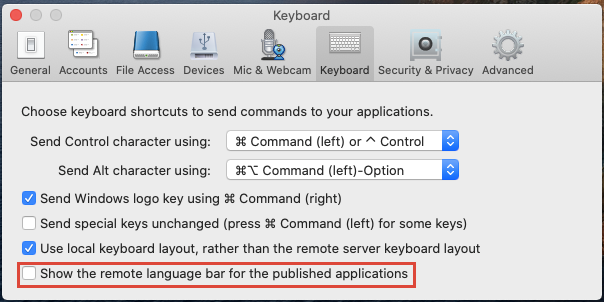
Open Citrix Workspace app Preferences → Keyboard and uncheck Show the remote language bar for the published applications. Default setting is checked.
Show/Hide Keyboard Layout Switch Pup-up Message Box
A message box will pop up in keyboard synchronization Mode 4 in Windows VDA if users switch the keyboard layout in the client side as below:

Configure in registry
Registry configuration is obsolete, but still support. Recommend to use group policy instead.
Add the following registries in Windows VDA to enable this feature:
HKEY_LOCAL_MACHINE\SOFTWARE\Citrix\IcaIme\HideNotificationWindow DWORD = 1
Configure in Citrix group policy
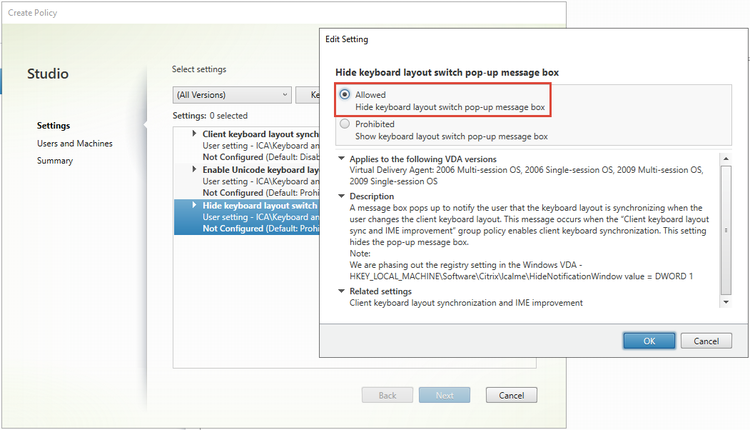
After Windows VDA version 1912 CU2 and 2006, Linux VDA 2012, VDA configuration support Citrix Group Policy. Refer to CTX312404 for detail. Hide keyboard layout switch pop-up message box is below:
101, 103 and 106 Keyboards
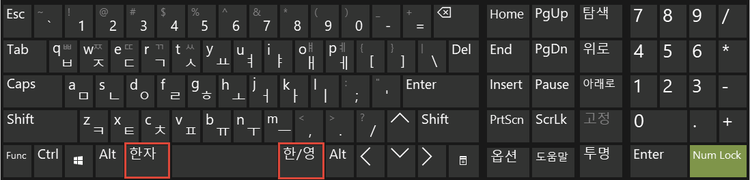
Most people use a 101 keyboard type. The 103 keyboard type, which supports two additional special keys, is used in Korea, and the 106 keyboard is used in Japan. The keyboard type is determined when a session starts.
103 Korean Keyboard
106 Japanese Keyboard
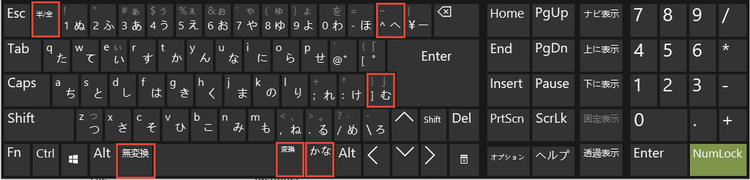
The following table shows how to configure Japanese 106 keyboard.
Citrix Workspace app Japanese 106 Keyboard Support detect client keyboard type automatically when session starts.
Appendix A. Supported Keyboard Name
Keyboard Name in Configure File Windows Keyboard Layout Identifier Keyboard Name in Windows 10